PydanticAI + MCP + Ollama examples for your local tool-use LLM

This blog post is for you if you’ve heard of the model context protocol (MCP) and are curious how you could implement something in Python such that you can try it with your local models that are capable of tool use, e.g. via Ollama. Maybe you even looked at the documentation but felt there still was something missing for you to get started?

At least that’s how I felt. The “easiest” / Stdio server verison worked immediately but when I wanted to use a HTTP server I was sort of stranded. It was unclear to me how to actually run the server and what the client needs where so it can successfully talk to the server. Don’t get me wrong, the MCP and PydanticAI documentation is pretty good, but things could always be easier, could they not? ๐Ÿ˜› Maybe I’ll save you some time with this post.

Model Context Protocol?

The MCP is designed to create servers that provide resources, prompts and tools and client that know how to handle those. The tools are intended to be directly used by language models from the side of the client.

So the examples here will only make use of the tools part of the MCP.

Types of servers

There are two types: Stdio and HTTP MCP servers. In my repo is one example for the Stdio type and three for the HTTP type, using mcp.run directly, or FastAPI or Starlette. You can find those in the following repo folders

Differences in Code

Following are the main differences in the implementation as I see them. For a more complete picture I recommend the links above and file diffs. ๐Ÿ™‚

Client side

# stdio / subprocess server
def get_stdio_mcp_server() -> MCPServerStdio:
    return MCPServerStdio("uv", args=["run", "server.py", "server"])

# http server: mcp.run / fastapi / starlette
def get_http_mcp_server(port: int = PORT) -> MCPServerHTTP:
    return MCPServerHTTP(url=f"http://localhost:{port}/mcp")

For the Stdio server the client we need to define how to run the server.py script, e.g. using uv in def get_stdio_mcp_server above.

For the HTTP server we only need to provide the URL, but that URL needs to be correct. ๐Ÿ˜€ The last part of the path is important, otherwise you get irritating error messages.

Server side

The first example pretty much looks like

# examples/0_subprocess/server.py

from mcp.server.fastmcp import FastMCP
from typing import Literal

mcp = FastMCP("Stdio MCP Server") # server object

@mcp.tool() # register tool #1 
async def get_best_city() -> str:
    """Source for the best city"""
    return "Berlin, Germany"

Musicals = Literal["book of mormon", "cabaret"]

@mcp.tool() # register tool #2
async def get_musical_greeting(musical: Musicals) -> str:
    """Source for a musical greeting"""
    match musical:
        case "book of mormon":
            return "Hello! My name is Elder Price And I would like to share with you The most amazing book."
        case "cabaret":
            return "Willkommen, bienvenue, welcome! Fremde, รฉtranger, stranger. Glรผcklich zu sehen, je suis enchantรฉ, Happy to see you, bleibe reste, stay."
        case _:
            raise ValueError

mcp.run() # start the server

Quite beautifully easy.

The 1_http_mcp_run example is actually only a little bit different

# examples/1_http_mcp_run/server.py

# stuff

mcp = FastMCP(
    "MCP Run Server",
    port=PORT, # <- set this
)

# stuff

mcp.run(transport="streamable-http") # <- set this transport value

So mainly we have to set a port value and the transport value. Easy peasy.

What about fastapi / starlette + uvicorn?

# examples/2_http_fastapi/server.py - starlette version is very similar

# stuff

mcp = FastMCP(
    "MCP Run Server"
) # no port argument needed here

# stuff

@contextlib.asynccontextmanager
async def lifespan(app: FastAPI):
    async with contextlib.AsyncExitStack() as stack:
        await stack.enter_async_context(mcp.session_manager.run())
        yield

app = FastAPI(lifespan=lifespan) # try removing this and running the server ^^
app.mount("/", mcp.streamable_http_app())

uvicorn.run(app, port=PORT)

Well dang! Still relatively easy but some added work needed in defining the lifespan function and making sure the path is mounted correctly.

Running it

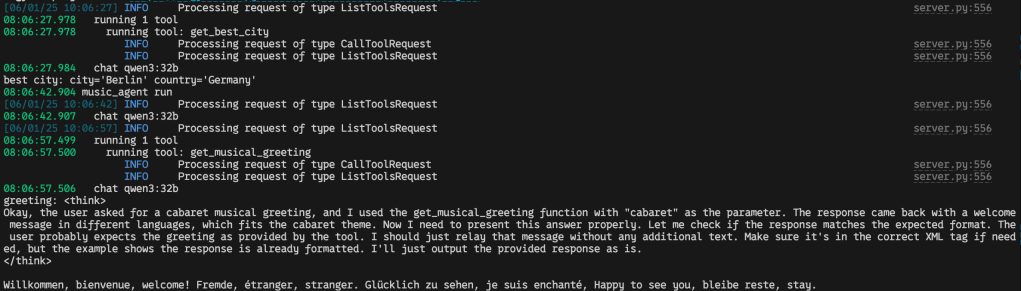
It’s documented here, but I’ve written the scripts such that all you need is python server.py and python client.py.

Then in your python client.py terminal it should look something like
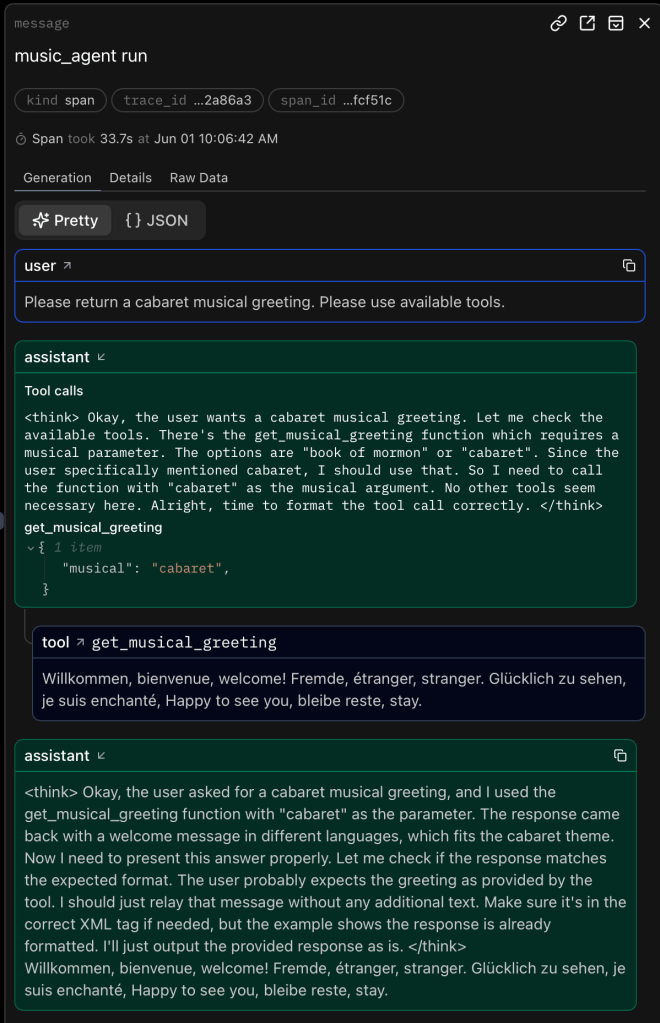
If you use logfire as set up in the client.py scripts and register an account with logfire you should be able to see the prompts and responses neatly like

and
Auf Wiedersehen, au revoir, goodbye

That’s it. Happy coding! ๐Ÿ™‚

Links to things

“hypermedia systems”‘s Contact.app with fasthtml

TL;DR

fasthtml is new, still seems to have some quirks, but is a great tool to use if you want to keep all your frontend logic in python.

Hello again

In my previous blog post I wrote about htmx used with flask and jinja2 as done by the authors of the book “hypermedia systems”.

Having done that one could wonder what that code would look like using fasthtml. This is what this blog post is about :), I know, you are probably shocked beyond belief, if you’ve seen my two previous posts.

Links to things

What is fasthtml?

According to the authors of fasthtml

with FastHTML you can get started on anything from simple dashboards to scalable web applications in minutes.

Bold claims. But the example they give in their docs illustrates the idea pretty well

from fasthtml.common import *
app = FastHTML()

@app.get("/")
def home():
    page = Html(
        Head(Title('Some page')),
        Body(Div('Some text, ', A('A link', href='https://example.com'), Img(src="https://placehold.co/200"), cls='myclass')))
    return page

serve()

So there is some similar routing as with flask, e.g. here with @app.get("/"). But then the great part that allows you to write frontend pieces is in the content of the function. That content is all you need to construct an actual HTML page, from python.

So all you need to learn is how fasthtml works to replace the jinja2 templating and html file business. The examples in their docs and their examples repo also are good starting points.

fasthtml to replace jinja2 templating and flask in the Contact.app

Was I successful swapping out jinja2 and flask with fasthtml? See for yourself :).

My attempt for this can be found in apps/web-fasthtml. It is based on apps/web4 ( so no json data api, but probably something that could be interesting to be done, especially with fastapi :P).

Turns out replacing the html / templating bits with fasthtml is relatively straigtforward, with a few quirks but also some pleasentness.

A good example of what the transition from jinja2 to fasthtml looks like is probably the HTML for the rows of the contacts to be displayed. In the original authors’ HTML that looks like

{% for contact in contacts %}
    <tr>
        <td><input type="checkbox" name="selected_contact_ids"
            value="{{ contact.id }}"></td>
        <td>{{ contact.first }}</td>
        <td>{{ contact.last }}</td>
        <td>{{ contact.phone }}</td>
        <td>{{ contact.email }}</td>
        <td>
            <a href="/contacts/{{ contact.id }}">View</a>
        </td>
        <td>
            <a href="/contacts/{{ contact.id }}/edit">Edit</a>
        </td>
        <td>
            <a
                href="#"
                hx-delete="/contacts/{{ contact.id }}"
                hx-swap="outerHTML swap:1s"
                hx-confirm="Are you sure you want to delete this contact?"
                hx-target="closest tr">Delete</a>
        </td>
    </tr>
{% endfor %}

with fasthtml it looks like

def get_rows(contacts: list[Contact]) -> FT:
    _get_td_view = lambda c: Td(A("View", href=f"/contacts/{c.id}"))
    _get_td_edit = lambda c: Td(A("Edit", href=f"/contacts/{c.id}/edit"))
    _get_td_delete = lambda c: Td(
        A(
            "Delete",
            href="#",
            hx_delete=f"/contacts/{c.id}",
            hx_swap="outerHTML swap:1s",
            hx_confirm="Are you sure you want to delete this contact?",
            hx_target="closest tr",
        )
    )
    rows = Tbody(
        Tr(
            Td(c.first),
            Td(c.last),
            Td(c.phone),
            Td(c.email),
            _get_td_view(c),
            _get_td_edit(c),
            _get_td_delete(c),
        )
        for c in contacts
    )
    return rows

So the order is a bit different, but pretty much 1:1 logic, except no knowledge of how jinja2 templating works is necessary, if you can figure out the proper way of passing arguments with fasthtml :D.

Quirks working with fasthtml

I see a few quirks when working with fasthtml, which may be worth knowing before diving in. Hopefully having read this it will save you some time down the line when you wonder why random 404s appear or data is not passed as expected.

Quirk #1 – Routing

In “hypermedia systems” a DELETE request to /contacts/archive triggers a dedicated function only for that combination of method and path. But in fasthtml this exact same code led to a 404 status code.

I may have overlooked fasthtml docs on how to properly fix this but I resorted to a dedicated path /contacts/archive/delete. That one actually was originally part of the vanilla HTML app but then actively removed in the “hypermedia systems” code in the book as a htmx feature.

This is what the htmx supported HTML looks like

<button hx-delete="/contacts/archive">
    Clear Download
</button>

This is the working fasthtml version

Button(
    "Clear Download", hx_delete="/contacts/archive/delete"
)

So the fasthtml version needs the “/delete” at the end, at least for that specific case. There are other instances where the expected hx_delete works just as expected.

Quirk #2 – Finding tags

Some guesswork is required to find some HTML tags in fasthtml, e.g. I failed to find equivalents for the <all-caps> and <sub-title> tags for the layout.

Quirk #3 – HTML attributes

HTML Tags are represented as functions with similar names as the tags, e.g. H1() can be called to create a <h1> tag.

To set attributes of the tags, one passes arguments to the fasthtml functions. But some arguments are just not visible in the documentation, e.g. “type” or “placeholder” for Input() / <input>.

The arguments for the attributes actually are there, but I only found them by guessing because sometimes those attribute / argument names are slightly different, e.g. for and class. This is because of them being reserved in python already, but then why have more than one way to spell each?

Quirk #4 – Typing

Sort of a minor thing, but it tripped me up a bit. fasthtml is less obsessively typed than other packages, e.g. pydantic ^^. But it does have a clever way of passing data coming from requests to functions, as part as their arguments, if specified.

For example

@app.route("/contacts/{contact_id}/edit", methods=["POST"])
def contacts_edit_post(d: FormData, contact_id: int = 0):
  ...

expects to receive in the body data structures just as FormData and contact_id as an integer from the path.

However those arguments NEED to have the right types, otherwise the hand-over does not work properly. If you forget the types at first you can easily accidentally create bugs.

Pleasentness working with fasthtml

That said. I find the code with fasthtml muuuuuuuch easier to refactor and process mentally than the flask / jinja2 version. Mainly because I only neep to keep in mind htmx principles, and fasthtml handles the rest what is not basic python / HTML.

The handing over of data from front to backend is relatively easy, e.g. in def contacts_new with FormData, if you remember to type it correctly ^^.

So learning fasthtml mostly seems to mean learning HTML and htmx. But you’d have to do that anyways with another approach like with flask and jinja2.

I was also pleasently surprised to find, that at least for the cases I’ve covered in this book that pretty much all HTML pieces required are already covered by fasthtml.

Some sort of final word

I’m very curious to see what sort of adoption htmx and fasthtml will have and how they will be developed. From my vantage point it seems together they do form a very useful combination of tools.

I’ll probably reach for them in the future, over flask / jinja2 or something like streamlit, if I need to build some frontend.

I hope this got you interested as well / saved you some time.

Until next time. Happy coding! ๐Ÿ™‚

“hypermedia systems”‘s Contact.app built up step by step

TL;DR

htmx can be quite useful, especially for python devs with not enough time to learn javascript frameworks but who needs an alternative to tools like streamlit.

The “hypermedia systems” book quite a good read, I recommend reading it.

My code discussed in this blog post very closely resembles the code in the “hypermedia systems” book, but is built up progressively, to make it easier to follow along the book when stepping through the chapters. I only cover parts I found essential though. But maybe my template is helpful to follow if you want to add components important to you.

Links to things

What is htmx?

It is a tool introduced in the book “hypermedia systems”. It’s a small javascript library you can install with little overhead, it extends HTML tags with attributes so you can use GET, POST, PUT and DELETE methods with various triggers, leading to new pages or replaces small pieces of the current one. There is also a small DELETE example below to illustrate the htmx capabilities.

The code in the “hypermedia systems” book

Starting to read the “hypermedia systems” book, I saw they provided code, hence I naturally wanted to implement it while reading along. Building something myself I find very helpful in actually understand it. But I quickly found that the code examples assumed presence of other, not discussed, code. Darn it! But I saw the authors referred to a github repo they have prepared, yay! Quickly jumping over there and cloning the repo I did find a working app, more yay! (how often do I find broken code …)

However, looking into the repo, trying to understand what I need to look at for the book in order to understand the mechanics, I found a bunch of javascript files, various html templates with htmx pieces I’ve not yet heard of in the book and I also couldn’t easily discern what code is necessary for the functionalities I’ve read about so far. This surprised me, I got the impression that the usage of htmx should be relatively easy, what is going on? Is the htmx business actually much more difficult than expected?

To find out I decided, instead of trying to understand the repo as is, to start from scratch, take a broom and clear out everything that is javascript and htmx and successively built it up, so plain file diffs can be used to understand the changes, limiting the added ideas to a minimum, following the chapters. Crossing fingers, hoping this decision will not lead me down unseen rabbit holes.

Turns out it in this case it was actually a sensible approach. The result of this ab intio journey is the main point of this blog post and can be found just after the following htmx teaser. ๐Ÿ™‚

htmx teaser

To illustrate a very neat aspect of htmx let’s look at one code example to send a DELETE request, which is not supported by HTML for some reason, see the book for more :).

What htmx allows you to do is the following

<!-- apps/web2/templates/edit.html -->
<button 
  hx-delete="/contacts/{{ contact.id }}"
  hx-target="body">
    Delete Contact
</button>

In this example the button tag gets added a hx-delete method that will make the click event on the button send a DELETE HTTP request to /contacts/{{ contact.id }}. The curly braces part is jinja2 templating, essentially only contains some id. The hx-target defines what is to be replaced by the HTML that is returned from the backend. This can be different things, here it’s "body".

The backend, using flask, then looks something like

# apps/web2/app.py
@app.route("/contacts/<contact_id>", methods=["DELETE"])
def contacts_delete(contact_id=0):
    ...

So only a route needs to be specified with the method DELETE and that will call the function def contacts_delete. This function is the one that returns HTML that will replace the target "body".

Mapping of chapters to code / app versions

Building the “Contact.app” app in the book up from scratch resulted in five versions of the app.

The first is in the directory `apps/web1`. It contains the most basic version of Contact.app, only flask, html (with jinja2 templating) and the needed css.

apps/web2 is the first version of the app containing htmx. It introduced boosting of links & forms for efficiency, the usage of DELETE, the validation of input on client and server side and paging.

apps/web3 adds some htmx features for user convenience like active search, lazy loading and inline / bulk delete.

apps/web4 adds the management of a long running process, e.g. data download, really just to show that it is possible.

apps/web5 also demonstrates something for the sake of it :P, the addition of a json data api. So the state of the app can be changed, e.g. via curl requests, leading to changes on the client side / frontend.

The chapters / sections are mapped to the above folders as follows:

Final words

I hope this progressive build-up of the “Contact.app” from the book “hypermedia systems” is of help to you.

In the next blog post something with fasthtml may be coming up. What could it be? What could it possibly be? So hard to guess! Such uncertainty. ๐Ÿ˜€

So long and happy coding!

Writing an interactive dataframe editor with fasthtml

Ever wanted to edit a pandas dataframe object in python in some interactive way felt too limited by streamlit but also did not want to pick up html / css / javascript just for that?

Then one solution could be fasthtml, or python-fasthtml as it is called on PyPI. With that package you can write your client facing web code as well as your server side code from the comfort of python. And, if you manage to wrap your head around it, you can also use htmx. Not quite sure I’m fully there yet myself :-P.

So using fasthtml, I’ve built a small app to edit a dataframe and uploaded it over on GitHub for you: https://github.com/eschmidt42/fasthtml-data-editor

There are two python files, main_simple.py and main_hx.py. The first creates the website in a more vanilla way, reloading the entire page when updating the dataframe. The latter uses htmx and replaces only the dataframe bits.

I’d recommend to compare them side by side. You’ll notice how the differences are quite minor.

References I found useful tinkering with this were

Happy coding!

Fully Utilizing Your Supermarket Receipts

Introduction

Want to track how much you spend on what but don’t want to download every supermarket’s app / manually fill some sort of spreadsheet?

The app (github) described here can be hosted on your machine or online so you can take a picture of your receipt with your phone upload it and later download the extracted data using a desktop machine.

App Overview

If you have a receipt like

this app let’s you extract the data in a form like the following JSON

{
    "shop": {
        "name": "My Supermarket",
        "date_str": "2024-10-14",
        "time_str": "13:12:00",
        "total": 6.5
    },
    "items": [
        {
            "name": "Bread",
            "price": 1.5,
            "count": 2,
            "mass": null,
            "tax": "A",
            "category": "Bread and baked goods"
        },
        {
            "name": "Milk",
            "price": 2.0,
            "count": 1,
            "mass": null,
            "tax": "B",
            "category": "Dairy"
        },
        {
            "name": "Eggs",
            "price": 3.0,
            "count": 6,
            "mass": null,
            "tax": "A",
            "category": "Dairy"
        }
    ]
}

What does the app look like you ask? ๐Ÿ™‚

Screenshots and Visuals

Login

Upload

Rotation

Cropping

Extraction & Wrangling

Collection

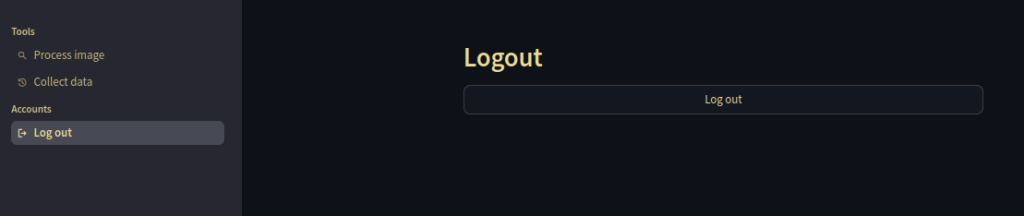
Logout

Usage

Start by taking a picture on your phone, then go to the site you hosted the app under using railway.app (see github), log in, upload the picture, rotate and crop it as needed, send the picture off to Claude for data extraction, edit the returned data, if necessary. After clicking “Continue” on the extraction & wrangling screen, you will see the upload screen again so you can upload more pictures if you’d like. If not you can log out of the site on your phone. The data will remain on the server, so you won’t loose it.

After you have done this process for one or more pictures you can collect the extracted data in csv, excel or zip, e.g. by logging into the app from your desktop machine, and going to the “Collect data” page under “Tools” in the sidebar on the left. There you can also wipe your data by clicking “Delete history”.

Alright, interested in more technical details to potentially deploy the app? ๐Ÿ™‚

Technical Details

The app is entirely written in Python 3.12, using the following tools

Deployment with railway.app is quite doable using the provided cli. Running

railway login

to log into the service,

railway init

to create a new project

railway up

to deploy the service from the current directory and

railway down

to take the service offline by removing the last deployment. Pricing is also quite acceptable, and currently you get a $5 starter credit.

Note that railway.app you currently host the service in the US.

Conclusion

I hope you found the read interesting and are now intrigued and in the mood to get your hands dirty, either deploying the app as is or modify it to satisfy your automation needs. ๐Ÿ™‚

Amazing how much easier it has become to do a useful OCR pet project, including web frontend, compared to even a year ago, no?

Call To Action

If you want to get into the technical weeds check out the github repo, and if you liked it maybe leave a star and subscribe. ๐Ÿ™‚