nix home-manager is actually useful

This is for you if …

You have some spare time and want to dive into nix and or try another way to configure your machine environment.

And let me tell you, nix is a great way of remedying the problem of never having had all software admin problems at the same time!

Jokes aside, there actually is a decent way of managing your home setup, i.e. aliases and command line tools using home-manager.

Code

The results of me experimenting with nix and home-manager on an arch virtual machine can be found on github:

linux-nix-home-manager @ github

The arch virtual machine I’ve used I set up as described in the last two blog posts #1 and #2.

If you are contemplating modifying the flake.nix, home.nix or uv.nix files in the linked github repo, be aware that this may be quite a new type of dragon to ride, even if you have coding experience, and it may take some time to fend off all the errors. It took me some home-manager examples (why are so many of them so complicated?!), diving through forums, and reading up on the nix language to inch my config forward bit by bit. Maybe I’d been faster if I’d done these steps in a different order :P. But I’ve included helpful references in the github repo.

Why did I write this?

Having the config on my virtual machine was nice but then I wanted to use it on macOS and found that actually with some edits, which were only a minor pain compared to figuring out how to add uv :D, the setup worked es well! Also switching from bash on arch to zsh on macOS was super easy. Essentially I could reproduce my setup by 1) install nix, 2) clone repo, 3) minor edits in the nix files for OS specified entries and 4) build and done!

Also, if I want to get rid of a command line tool I just update my home-manager config and swoosh it’s gone, no need to worry which things may need removing anymore, similar for aliases and other command line tool configs.

So all problems solved?

Not quite.

If I want to add a new tool and it’s not one of the packages available out of the box with nix packages one needs to figure out how to install it.

A macOS specifically annoying part is that while GUI tools can be installed the same way as on arch, e.g. add them to home.packages in home.nix, they’ll not be found by Spotlight. But apparently no matter, nix-darwin may help with that. Something to try once the patience recharged. But you don’t need nix-darwin for user home specific setup and command line tools!

Fully Utilizing Your Supermarket Receipts

Introduction

Want to track how much you spend on what but don’t want to download every supermarket’s app / manually fill some sort of spreadsheet?

The app (github) described here can be hosted on your machine or online so you can take a picture of your receipt with your phone upload it and later download the extracted data using a desktop machine.

App Overview

If you have a receipt like

this app let’s you extract the data in a form like the following JSON

{
    "shop": {
        "name": "My Supermarket",
        "date_str": "2024-10-14",
        "time_str": "13:12:00",
        "total": 6.5
    },
    "items": [
        {
            "name": "Bread",
            "price": 1.5,
            "count": 2,
            "mass": null,
            "tax": "A",
            "category": "Bread and baked goods"
        },
        {
            "name": "Milk",
            "price": 2.0,
            "count": 1,
            "mass": null,
            "tax": "B",
            "category": "Dairy"
        },
        {
            "name": "Eggs",
            "price": 3.0,
            "count": 6,
            "mass": null,
            "tax": "A",
            "category": "Dairy"
        }
    ]
}

What does the app look like you ask? 🙂

Screenshots and Visuals

Login

Upload

Rotation

Cropping

Extraction & Wrangling

Collection

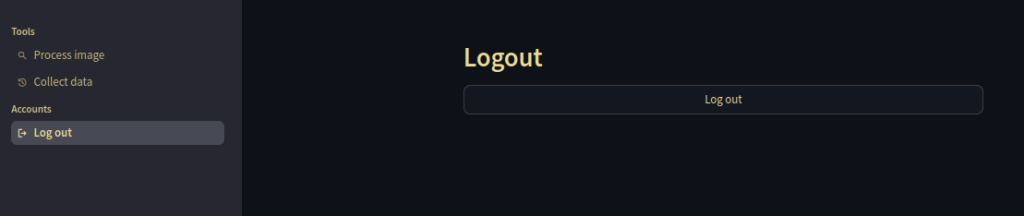
Logout

Usage

Start by taking a picture on your phone, then go to the site you hosted the app under using railway.app (see github), log in, upload the picture, rotate and crop it as needed, send the picture off to Claude for data extraction, edit the returned data, if necessary. After clicking “Continue” on the extraction & wrangling screen, you will see the upload screen again so you can upload more pictures if you’d like. If not you can log out of the site on your phone. The data will remain on the server, so you won’t loose it.

After you have done this process for one or more pictures you can collect the extracted data in csv, excel or zip, e.g. by logging into the app from your desktop machine, and going to the “Collect data” page under “Tools” in the sidebar on the left. There you can also wipe your data by clicking “Delete history”.

Alright, interested in more technical details to potentially deploy the app? 🙂

Technical Details

The app is entirely written in Python 3.12, using the following tools

Deployment with railway.app is quite doable using the provided cli. Running

railway login

to log into the service,

railway init

to create a new project

railway up

to deploy the service from the current directory and

railway down

to take the service offline by removing the last deployment. Pricing is also quite acceptable, and currently you get a $5 starter credit.

Note that railway.app you currently host the service in the US.

Conclusion

I hope you found the read interesting and are now intrigued and in the mood to get your hands dirty, either deploying the app as is or modify it to satisfy your automation needs. 🙂

Amazing how much easier it has become to do a useful OCR pet project, including web frontend, compared to even a year ago, no?

Call To Action

If you want to get into the technical weeds check out the github repo, and if you liked it maybe leave a star and subscribe. 🙂